Inhoudsopgave
Elke dag beginnen bezoekers aan je formulieren en checkouts, maar haken ze af voor ze op verzenden klikken. Dat zijn omzet en leads die je misloopt. Leadsback vangt die halfingevulde data automatisch op en stuurt het naar je dashboard, zodat jij kunt opvolgen en die leads alsnog binnenhaalt.
Je bent binnen een paar minuten klaar. Hieronder de volledige uitleg.
Stap 1: Kies je prijsplan
Ga naar onze prijzenpagina en kies het plan dat bij je past. Zodra je de checkout hebt afgerond, kun je de plugin downloaden.
Stap 2: Download de Leadsback Client plugin
Download het plugin-bestand hier, of haal het op via de link in je bevestigingsmail als je al een betaalplan hebt gekozen.
Sla het .zip-bestand ergens op waar je het makkelijk terugvindt, zoals je bureaublad of downloadmap. Je hebt het nodig bij de volgende stap.
Stap 3: Activeer de plugin op je WordPress site
Log in op je WordPress dashboard en ga naar Plugins > Nieuwe plugin > Plugin uploaden. Selecteer het .zip-bestand dat je net hebt gedownload, klik op Nu installeren, en klik na afloop op Activeren.
Klaar, Leadsback staat nu op je site. Nu moet je hem nog koppelen aan je account.
Stap 4: Log in op je dashboard
Ga naar dashboard.leadsback.app en log in met de gegevens die je bij aanmelding per mail hebt ontvangen. Kun je de mail niet vinden? Check je spamfolder of neem contact op met support, dan helpen we je verder.
Stap 5: Koppel je website
Ga in je dashboard naar het onderdeel Websites en maak een nieuwe connectiesleutel aan. Kopieer deze sleutel en plak hem in de instellingen van de Leadsback plugin op je WordPress dashboard.
Deze connectiesleutel koppelt je website aan je dashboard, dus zorg dat je hem correct invoert. Beheer je meerdere sites, dan heeft elke site zijn eigen sleutel nodig.
Stap 6: Klaar!
Zodra de koppeling is gemaakt, gaat Leadsback direct aan de slag op de achtergrond. Elke gemiste lead, of het nu een afgebroken formulier of een onvolledige checkout is, wordt automatisch opgevangen en direct realtime naar je dashboard gestuurd. Verder hoef je niets meer in te stellen.
Tips bij problemen
- Plugin wil niet uploaden: zorg dat je het .zip-bestand direct uploadt, zonder het eerst uit te pakken.
- Kan je connectiesleutel niet vinden: die staat onder Websites > [Jouw site] > Connectiesleutel in je dashboard.
- Zie je geen data binnenkomen: controleer of de connectiesleutel in je dashboard en plugin-instellingen exact overeenkomen, en check of de plugin geactiveerd is.
Hulp nodig?
Loop je tijdens de installatie tegen problemen aan? Neem contact op met ons supportteam, dan helpen we je op weg.
Begin met leads terughalen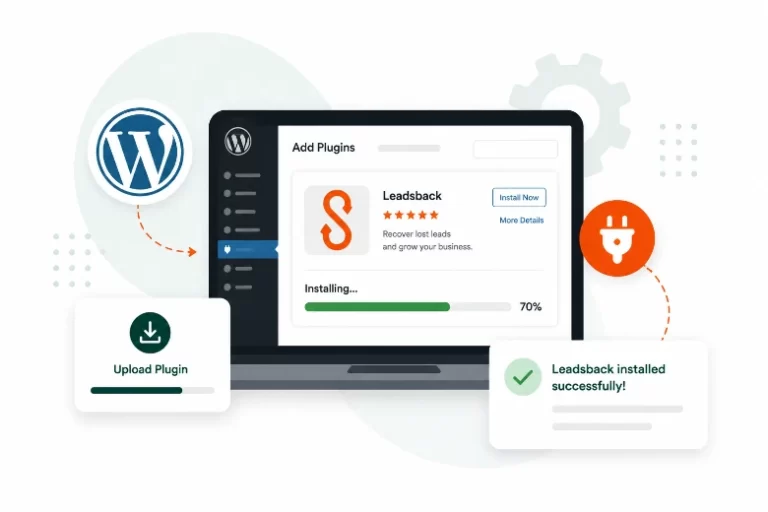
Veelgestelde vragen
Leadsback geeft je een helder overzicht van onafgemaakte formulieren, afgebroken checkouts en je herstelresultaten.